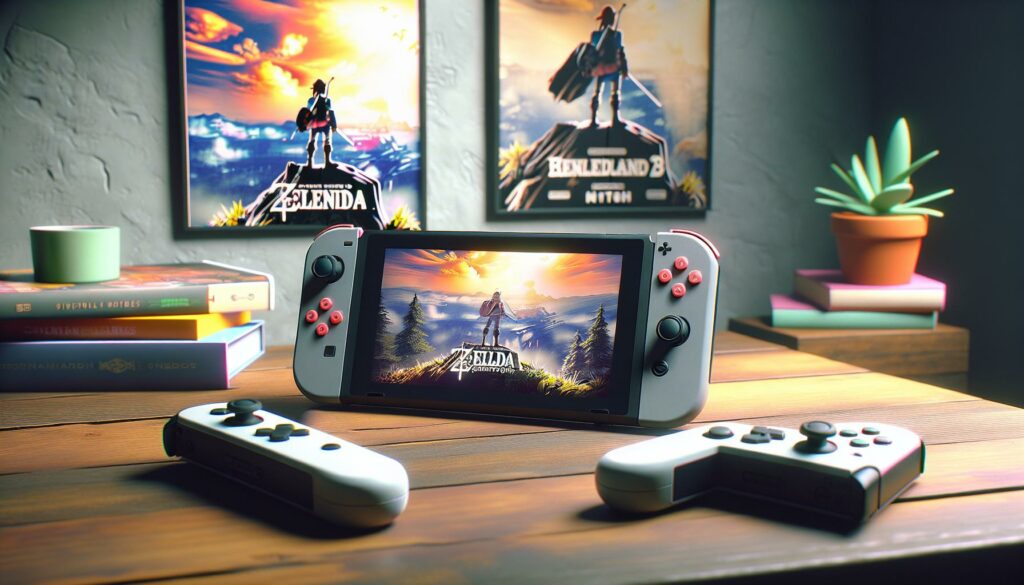

The Nintendo Switch is one of the most versatile gaming devices on the market, but its 6.2-inch handheld screen only tells half the story. Moving your gameplay to a TV transforms the experience, sharper visuals, immersive sound, and genuinely comfortable gaming sessions that don’t leave your hands cramped. Whether you’re grinding through a 100-hour RPG or hosting a multiplayer party, knowing how to connect your Nintendo Switch to a TV is essential. This guide walks you through every method, from the official dock to alternative solutions, plus troubleshooting tips for when things don’t cooperate.
Key Takeaways
- Connecting your Nintendo Switch to a TV significantly improves visual quality and sound, with most gaming TVs displaying 50–65 inches compared to the handheld’s 6.2-inch screen.
- The official Nintendo Switch Dock is the most reliable option, but reputable third-party docks ($25–60) offer flexibility for users who need portability or upgrades.
- Enable Game Mode on your TV to reduce input lag by 10–30ms, a critical advantage for competitive games like Splatoon 3 and Super Smash Bros. Ultimate.
- Troubleshooting 90% of connection issues involves checking HDMI cable connections, confirming correct TV input selection, and verifying the dock has proper power.
- Keep your Switch dock in a well-ventilated area away from enclosed spaces, and clean dust from the USB-C connector every few months to maintain performance and reliability.
- For content creators, capture cards like Elgato HD60 S+ or AVerMedia Live Gamer Portable 2 Plus enable streaming to Twitch and YouTube, features the Switch’s native streaming lacks.
Why Connect Your Nintendo Switch To A TV
Playing on handheld is convenient, but the Switch‘s portable screen has limits. TV docking gives you a significantly larger display, most gaming TVs range from 50 to 65 inches, which changes how you perceive detail and color depth. Games like The Legend of Zelda: Tears of the Kingdom and Mario Kart 8 Deluxe shine on a proper screen setup.
Beyond visuals, TV connection unlocks better audio. The Switch‘s built-in speakers are functional but thin. When connected to a TV with decent speakers or routed through a soundbar, the audio quality jumps dramatically. You’ll hear atmospheric cues, music depth, and directional sound effects that handheld play just can’t deliver.
There’s also the practical side. Extended gaming sessions on a TV mean less strain on your neck and hands. Your controllers sit comfortably in your lap or on an armrest. If you play competitive games like Super Smash Bros. Ultimate or Splatoon 3, a larger screen gives you better spatial awareness and faster reaction times.
Finally, TV docking is straightforward entertainment for groups. Local multiplayer, couch co-op, or even just watching someone else play becomes a shared experience rather than crowding around a small screen.
What You’ll Need: Essential Equipment And Cables
Before you dock your Switch, gather the right gear. Here’s what matters and what doesn’t.
Official Nintendo Docking Station
The Nintendo Switch Dock (included with most Switch purchases) remains the gold standard. It’s a sleek black cradle with a USB-C port, AC adapter input, and built-in HDMI passthrough. The dock holds your Switch securely in portrait mode and charges it simultaneously during gameplay.
The official dock is reliable, but it has quirks. The AC power cable is proprietary, you can’t just swap in any USB-C charger. The dock also runs warm during extended sessions, which is normal but worth noting if your TV sits in an enclosed cabinet.
If your dock is damaged or missing, replacements cost around $40–50 from major retailers. The Nintendo Switch Lite doesn’t come with a dock and can’t be docked at all, it’s strictly handheld. The Switch OLED model uses the same dock as the standard Switch.
Alternative Docking Solutions
Third-party docks exist for those who want flexibility or own multiple switches. Popular options include the Nyxi Hyperkin DK2, Insignia Dock, and HORI Stand+. These typically run $25–60 and offer ergonomic improvements like better viewing angles or compact designs for travel.
Why choose alternatives? Some people prefer a smaller footprint on their entertainment stand. Others want a dock that doesn’t charge (if you’re using an external charger), or they simply lost their original and want an upgrade.
Here’s the caveat: third-party docks have occasionally caused issues in the past, particularly with HDMI connections dropping or the Switch not charging properly. As of 2026, most reputable brands have solved these problems, but stick with well-reviewed options from established manufacturers. Avoid ultra-cheap knockoff docks: the savings aren’t worth replacing your Switch later.
HDMI Cables And Power Requirements
The Switch needs two connections: HDMI for video and USB-C power for charging.
For HDMI, any standard HDMI 2.0 or 2.1 cable works. You don’t need anything exotic, the Switch outputs a maximum of 1080p in TV mode (4K is not supported, even though the Switch OLED’s nicer screen). A basic cable from any reputable brand costs $5–15 and will last indefinitely.
For power, the official dock uses Nintendo’s proprietary AC adapter. If you’re using a third-party dock, you’ll likely need a USB-C power supply rated for at least 15W. Many third-party docks accept standard USB-C cables, which gives you flexibility, you can use the same charger you’d use for a laptop or phone.
One pro tip: if you’re docking in a location far from an outlet, grab a long HDMI cable (25+ feet is available) rather than running the power cable across a room. It’s neater and safer.
For the TV itself, confirm it has an available HDMI input. Virtually all modern TVs have multiple HDMI ports, so this rarely becomes an issue. If your TV is older than 2010, it might only have composite connections (those colored cables), but those TVs are rare in active gaming households by 2026.
Step-By-Step Connection Instructions
Using The Official Nintendo Switch Dock
Step 1: Position the dock on a stable surface near your TV. Make sure there’s adequate ventilation around it, avoid cramped cabinets or tight shelves.
Step 2: Connect power. Plug the AC adapter into the dock and then into a wall outlet or power strip. You should see a small LED light turn on.
Step 3: Connect HDMI. Take your HDMI cable, plug one end into the HDMI port on the back of the dock, and connect the other end to an available HDMI input on your TV.
Step 4: Insert the Switch. With the Joy-Con controllers attached, align the Switch with the dock’s opening and gently slide it down into the cradle. You should feel slight resistance as the USB-C connector makes contact. The screen will likely turn off momentarily, this is normal.
Step 5: Switch TV input. Using your TV remote, select the correct HDMI input. Your TV should detect the Switch and display the home menu within a few seconds. If not, try a different HDMI input or reseat the Switch in the dock.
Step 6: Confirm audio output. Check your TV’s settings to ensure audio is being routed to the TV speakers or your connected sound system. Most TVs auto-detect this, but manual adjustment may be needed (more on this later).
That’s it. Your Switch is now docked and ready for gameplay.
Setting Up Third-Party Docking Stations
Third-party docks follow the same general process but with slight variations depending on the model.
Key differences:
- Charging: Some third-party docks charge the Switch, others don’t. Check your specific dock’s manual, it’ll clarify whether you need a separate USB-C charger.
- Build quality: Premium docks often have stronger USB-C connectors and better cable management. Budget options might feel loose initially, but they usually perform fine.
- Viewing angle: Some third-party docks offer adjustable stands. Position the Switch to reduce glare and find your preferred viewing angle before gaming.
Follow the dock manufacturer’s instructions step-by-step. The HDMI and power connections are the same as the official dock, the difference is purely in how the Switch sits in the cradle.
Configuring Your TV Display Settings
Once your Switch appears on the TV, a few settings tweaks optimize the display.
Access Switch settings: On the home menu, go to System Settings > TV Settings.
You’ll see options for:
- Resolution: The Switch automatically detects your TV and outputs at the best supported resolution (typically 1080p for most games, though some support variable framerates). Leave this on automatic unless you’re troubleshooting.
- HDMI RGB range: This should match your TV’s input settings. Most modern TVs use “Full” range: older TVs might need “Limited.” If your image looks washed out or too dark, try adjusting this setting.
- Automatic TV mode: If you want the Switch to automatically switch to TV mode when docked, enable this. Otherwise, you manually select “TV Mode” from the home menu each time.
- Dock LED brightness: Purely aesthetic, but you can dim or disable the dock’s light to reduce distractions.
On your TV itself, you should also check picture settings. Most gaming TVs have a “Game Mode” setting that reduces input lag (the delay between pressing a button and seeing the result on screen). Enable this for competitive games. For story-driven or casual games, standard picture modes are fine.
If your TV supports RTINGS display technology guides, running through their recommended settings for your specific TV model ensures you’re getting the best picture quality for your Switch games.
Troubleshooting Common Connection Issues
No Signal Or Black Screen Problems
You dock the Switch, the dock’s LED lights up, but your TV shows nothing. This is the most common issue, and it’s usually fixable in under a minute.
First, check the basics:
- Is the HDMI cable fully inserted into both the dock and your TV? A partially connected cable can cause intermittent or no signal.
- Is your TV on the correct input? Use your remote to manually cycle through HDMI inputs. Sometimes the auto-detect feature misses the Switch, especially on older TVs.
- Is the dock powered? The dock needs AC power to function: USB power alone won’t work. Check that the power adapter is plugged in and the LED is lit.
If basics check out, try these steps:
- Undock and redock. Remove the Switch from the dock completely, wait 10 seconds, and slide it back in firmly. This can reset the HDMI connection.
- Swap HDMI ports. Unplug the HDMI cable from your TV and try a different HDMI input port. It’s possible one port on your TV is faulty.
- Use a different HDMI cable. Borrow a cable from another device and test. HDMI cables rarely fail, but it happens.
- Restart the Switch. Press and hold the power button on the top of the Switch for 10 seconds to fully shut it down. Wait 5 seconds, then power it back on and redock.
Still nothing? Try docking the Switch in handheld mode (don’t attach the Joy-Con controllers to the dock). Remove any protective case. Occasionally a thick case prevents the USB-C connection from making contact.
If you’ve cycled through all of these and still have no signal, the dock’s HDMI output might be faulty. Contact Nintendo support or replace the dock with a third-party alternative.
Audio Issues And Resolution Problems
No sound from the TV:
- Confirm your TV’s volume isn’t muted. Check both your TV remote and any connected soundbar.
- Go to Switch System Settings > TV Settings and ensure “Audio Output” is set to “Automatic” or “TV Speakers” (not headphones).
- Unplug and replug the HDMI cable. Sometimes the audio handshake between the Switch and TV doesn’t establish on first connection.
- Check your TV’s HDMI input settings. Some TVs require you to manually enable audio input for a specific HDMI port (look for an “Audio In” or “eARC” setting in your TV’s menus).
Sound is distorted or crackling:
This usually means an incompatibility between the Switch’s audio signal and your TV or sound system. Try switching the HDMI RGB range setting (mentioned above). If you’re using a soundbar or receiver, verify it’s connected correctly and set to the right input.
Wrong resolution or blurry image:
The Switch should auto-detect the best resolution for your TV. If the image looks off:
- Press home, go to System Settings > TV Settings > Resolution, and manually select 1080p.
- On your TV, verify the picture isn’t set to “zoom” or “underscan” mode. Your TV remote likely has a picture size or aspect ratio button, make sure it’s set to “Full” or “Fit to Screen.”
- If you’re using a third-party dock, occasional compatibility issues cause resolution drops. Reseat the Switch and try again.
Controller And Connectivity Troubleshooting
Your Switch is displaying on the TV, but your Joy-Con controllers aren’t responding or keep disconnecting.
Controllers won’t connect to docked Switch:
- The Switch should automatically pair with any Joy-Cons that were previously attached. If they’re not responding, remove them from the console and wait 5 seconds.
- Press the small sync button on the back of each Joy-Con (you might need a toothpick to reach it), then try connecting them again.
- If you’re using a Pro Controller instead, make sure it’s charged and nearby. The range is typically 30 feet, but obstacles (walls, interference from other wireless devices) can reduce it.
Controllers randomly disconnect or lag:
- Move the dock away from other wireless devices: cordless phones, microwaves, or competing Wi-Fi routers can interfere with Joy-Con signals.
- Keep controllers within 10 feet of the docked Switch for the most stable connection.
- Check if Joy-Con battery levels are low. Press the home button and look at the battery indicator in the top-right corner of the screen. Recharge any controllers showing red.
- Update your Joy-Con firmware. On a docked Switch, go to System Settings > Controllers and Sensors > Update Controllers.
Pro Controllers won’t connect:
- Hold the pairing button (small button on top of the controller, near the charging port) for 5 seconds until the LED flashes.
- On your Switch home menu, go to System Settings > Controllers and Sensors > Pro Controller Wired Communication (if using wired) or Pair Controllers (if wireless).
- Select “Search for Controllers” and wait for the Switch to detect it.
These fixes resolve 95% of controller issues. If problems persist, your Joy-Cons might have drifting issues (a common hardware problem on older units), which requires repair or replacement through Nintendo.
Optimizing Your Gaming Experience On TV
Display Settings And Resolution Options
The Switch caps out at 1080p output, but how that 1080p is rendered depends on the game. Some titles run at a native 1080p at 60 FPS: others drop to 720p at 60 FPS or even 540p docked to maintain performance. Mario Kart 8 Deluxe, for example, runs 1080p/60 in most modes. Breath of the Wild targets 900p/60 when possible. You don’t control this per-game, the game developer sets the resolution.
What you can control is your TV’s interpretation of that signal. Here’s where HDR matters (if your TV supports it). Some Switch games support HDR, which expands the range of colors and brightness levels. Not all titles have it enabled, but games like The Legend of Zelda: Tears of the Kingdom and Bayonetta 3 look noticeably better on an HDR-capable TV.
To maximize your display:
- Enable Game Mode on your TV. This reduces input lag, critical for fast-paced games like Splatoon 3 or Super Smash Bros. Ultimate. The difference between Game Mode and Standard Mode can be 10-30ms, which directly impacts competitive performance.
- Disable motion smoothing or “TruMotion” settings. These post-processing effects add soap-opera-like artifact to games and aren’t worth it.
- Set brightness and contrast appropriately. A dark game should be visible (not muddy black), and bright scenes shouldn’t bloom or lose detail. Most modern TVs have good defaults, but spending 5 minutes tweaking makes a difference.
- Use a quality HDMI cable. You don’t need gold-plated exotic cables, but a cable rated for high-speed 18 Gbps supports maximum bandwidth. A standard cable does fine for 1080p, though.
If you’re serious about picture quality, How-To Geek gaming setup tutorials offer detailed TV calibration guides tailored to different game genres.
Audio Configuration For Better Sound
The Switch’s audio outputs in stereo by default. Most games don’t use surround sound or object-based audio (like Dolby Atmos) because the hardware doesn’t support it. But you can still optimize audio output.
If you have a soundbar or home theater system:
- Connect the soundbar to your TV via HDMI eARC (if supported) or optical audio cable. The TV will pass Switch audio through to the soundbar.
- Some soundbars can upmix stereo to virtual surround sound. Test this in the soundbar’s app or settings, it works well for some games, feels gimmicky for others.
- Set your soundbar’s input to your TV’s audio output, not directly to the dock (unless your dock has optical output, which most don’t).
If you’re using TV speakers alone:
- Go to System Settings > TV Settings > Audio Output.
- Select “Automatic” (default) or “TV Speakers.” This routes audio through your TV’s built-in speakers.
- Adjust TV volume via your TV remote, not the Switch (the Switch itself doesn’t have a volume setting when docked).
Volume normalization: The Switch outputs fairly hot audio, so you might find the volume loud compared to other devices. Adjust your TV’s volume to a comfortable level and stick with it. If you’re switching between the Switch and streaming apps (Netflix, etc.), the Switch might feel louder, this is normal.
For competitive gamers, headphones matter more than TV audio. Directional sound cues are crucial in games like Splatoon 3 or Mario Kart. A dedicated gaming headset (wired or wireless, via USB-C dongle) provides better spatial audio than any TV setup. Brands like SteelSeries and HyperX make Switch-compatible headsets, though most USB gaming headsets work fine.
Using Wireless Controllers And Accessories
When your Switch is docked, wireless controllers shine. You’re no longer confined to a small distance, and gameplay feels more natural than fumbling with Joy-Cons attached to the console.
Joy-Con Controllers:
The bundled Joy-Cons attach to the sides of the Switch for handheld play, but they can also detach and be used wirelessly when docked. Simply press the release button on the back of each controller to remove them, and they’ll maintain their wireless connection as long as they’re in range (about 30 feet).
Pro Controller:
The official Nintendo Switch Pro Controller is the gold standard for TV play. It’s wired via USB-C or wireless via Bluetooth. The battery lasts 40 hours per charge, the build quality is excellent, and it’s the most precise controller for competitive games. It costs around $70 and is worth every penny if you’re playing anything demanding.
Third-Party Controllers:
Alternatives from companies like 8BitDo, PowerA, and Hori range from $25–60. Some are wired, others wireless. Quality varies, premium third-party controllers are excellent, but cheap knockoffs have poor D-pads or stick responsiveness. Stick with established manufacturers if you want reliability.
One consideration: if you’re using a third-party controller and encounter wireless cutouts, move the dock away from other wireless devices (routers, phones, microwaves). The 2.4 GHz band gets crowded.
Charging docked controllers:
Joy-Cons charge when attached to the docked Switch. A Pro Controller charges via USB-C cable, you can charge it while playing (with the included USB-C cable) or charge it separately.
For extended gaming sessions, keep a second set of Joy-Cons or Pro Controller charged and ready. Nothing derails a multiplayer marathon faster than a dead controller.
Wireless And Alternative Connection Methods
Wireless HDMI Adapters And Streaming Options
If running an HDMI cable across your room is impractical, wireless HDMI adapters exist. Products like Nyxi Wireless HDMI and ASUS Wireless Dock transmit video wirelessly from your docked Switch to a receiver connected to your TV.
How they work: You place the receiver near your TV and the transmitter in or near the dock. The Switch output is sent wirelessly, eliminating cable clutter.
The reality check: Wireless HDMI adds latency (input lag). For single-player games, it’s barely noticeable. For competitive or fast-paced games, it can be frustrating. Most wireless HDMI systems introduce 30-60ms of lag, which is significant if you’re playing Super Smash Bros. or Splatoon 3. Wired HDMI is still the gold standard for responsiveness.
Another consideration: wireless HDMI adapters are pricey ($60–150) and not always reliable. The technology has improved, but it’s not as bulletproof as a simple cable.
For casual TV play, a wireless setup works. For competitive gaming, stick with wired HDMI.
Streaming the Switch to other devices:
You cannot stream your Switch’s output to another device natively. Nintendo doesn’t support AirPlay, Chromecast, or similar technologies. If you want to stream your Switch gameplay (for content creation or remote viewing), you’ll need capture card hardware (covered below).
There’s no way around this, it’s a hardware limitation of the Switch itself.
Using Capture Cards For Content Creators
If you want to stream your Switch gameplay to Twitch, YouTube, or Discord, a capture card is essential. Capture cards convert the HDMI signal from your Switch (or any console) into a USB or network connection your PC can record or stream.
Popular capture cards for the Switch:
- Elgato HD60 S+: $180, reliable, plug-and-play, excellent software integration.
- AVerMedia Live Gamer Portable 2 Plus: $150, compact, works with PC and Mac.
- Razer Ripsaw X: $200, high-quality, good for 1080p60 capture.
- Budget option: Ryzen Lut U: Around $30–50, basic but functional for beginners.
How it works:
- HDMI cable from your Switch dock goes into the capture card’s HDMI input.
- USB cable from the capture card connects to your PC.
- Streaming software (OBS, Streamlabs, etc.) recognizes the capture card as a video source.
- You stream directly from your PC to Twitch/YouTube.
What about Switch online streams?
The Switch has a built-in streaming feature (via the Streaming app), but it’s limited: you can only stream to Discord friends or Twitter, not to Twitch or YouTube directly. This is a handicap for serious streamers, which is why capture cards exist.
Capture cards also allow you to add overlays, alerts, multiple camera angles, and other production elements that the Switch’s native streaming can’t support. If content creation is your goal, a capture card is the right investment. For casual streaming to a Discord group, the Switch’s native feature is enough.
A solid mid-range capture card (Elgato or AVerMedia in the $150 range) is a worthwhile purchase if you’re serious about streaming. Budget options work but lack reliability and software features.
Protecting Your Switch While Docked
Your Switch is durable, but docking puts it in a static position for extended periods. Heat and dust buildup can eventually affect performance.
Ventilation is paramount. Never place the dock in an enclosed space like a closed cabinet or shelf without proper airflow. The dock gets warm during extended play, that’s normal, but it shouldn’t be hot enough to burn your hand. If you notice the dock is uncomfortably hot, move it to a better-ventilated spot.
Dust accumulation: The dock’s opening can collect dust over time, especially if it’s in a living room with carpet or pets. Every few months, use a small flashlight to peek into the dock. If you see dust around the USB-C connector, power off your setup and gently clean it with a dry microfiber cloth. Never use liquids or compressed air near electronics.
Cable management: Organize HDMI and power cables to avoid strain or accidental tugging. A loose HDMI cable can cause intermittent signal loss. Consider cable clips or sleeves to keep wires tidy and protected.
Thermal throttling: If your Switch feels hot during play, it might be thermally throttling, reducing processing power to cool down. This is a safety feature, not a sign of damage, but it can reduce gaming performance. Improve ventilation around the dock. Don’t place the dock in direct sunlight or near heat sources (fireplaces, radiators, vents).
Screen protection: Even in the dock, your Switch’s screen is exposed. Avoid touching it unnecessarily, and keep liquids away. The OLED model’s screen is especially prone to burn-in if the same static image displays for hours. While it’s rare in practice, it’s worth being aware of.
Dock cradle wear: The plastic cradle that holds the Switch can develop loose spots over years of daily insertion. If the Switch starts to rock or feel unstable in the dock, a third-party dock might have a tighter tolerance. This isn’t urgent, it’s just a comfort issue.
Backup your saves: While protecting the hardware matters, protecting your data is equally important. The Switch stores game saves internally. If your Switch ever fails, you’ll lose those saves unless you have Nintendo Switch Online activated (which enables cloud backups for most games). For valuable save files, subscription is worthwhile. Read up on Nintendo Switch Online features and value to understand what’s backed up and what isn’t.
Conclusion
Connecting your Nintendo Switch to a TV is straightforward, but getting it right transforms your gaming experience. The official dock remains the reliable choice, though third-party options offer flexibility if your needs differ. Once connected, a few TV settings tweaks, enabling Game Mode, adjusting picture settings, and confirming audio output, ensure you’re getting the best possible visuals and sound.
Troubleshooting is rare with modern equipment. If something goes wrong, 90% of issues come down to unseated HDMI cables or incorrect TV inputs. The step-by-step approach covered here resolves virtually every common problem.
Optimizing your setup doesn’t require expensive gear. A decent HDMI cable and appropriate power supply are all you need. Wireless controllers add comfort but aren’t mandatory. A Pro Controller becomes worth it if you’re playing anything demanding, but Joy-Cons work for casual play.
For content creators, capture cards open doors to streaming and recording. For everyone else, the native streaming features of the Switch handle Discord or casual sharing just fine.
Final thought: the Switch is built tough and tested by millions of players. If you follow basic ventilation practices and use reputable docks and cables, your setup will run reliably for years. Take the 15 minutes to set this up properly once, and you’ll enjoy countless hours of TV gaming without another thought.