Getting your Nintendo Switch connected to a TV might seem straightforward, but there’s more to maximizing that experience than just plugging in a cable. Whether you’re setting up a new console or troubleshooting an existing setup, knowing the right steps, from dock positioning to display optimization, makes all the difference between a smooth gaming session and frustrating technical issues. This guide walks you through every aspect of connecting your Nintendo Switch to your television, covering everything from the basics to advanced tweaks that serious gamers use to reduce input lag and improve performance. By the end, you’ll have a rock-solid TV setup that works every time.
Key Takeaways
- Proper dock placement with 4-6 inches of clearance on all sides prevents thermal throttling and ensures optimal console performance during extended gaming sessions.
- Hooking up Nintendo Switch to TV requires an official USB-C power adapter, HDMI cable, and checking your TV’s HDMI port version for a reliable connection.
- Enable Game Mode on your TV and disable motion smoothing to reduce input lag by 30-50ms, a critical optimization for competitive games like Super Smash Bros. Ultimate.
- If you encounter a black screen, systematically check the dock’s power LED, reseat your HDMI cable firmly on both ends, and try different TV HDMI ports before restarting your console.
- Using certified third-party docks like Nyxi Wizard or Genki Covert Dock can improve ventilation and aesthetics without sacrificing safety, as long as they support USB Power Delivery (USB-PD).
- Keep your Switch dock’s vents clean and avoid blocking airflow with furniture or cables to maintain consistent performance and prevent stuttering on demanding open-world games.
Understanding Your Nintendo Switch Setup Options
Docked Mode vs. Handheld and Portable Play
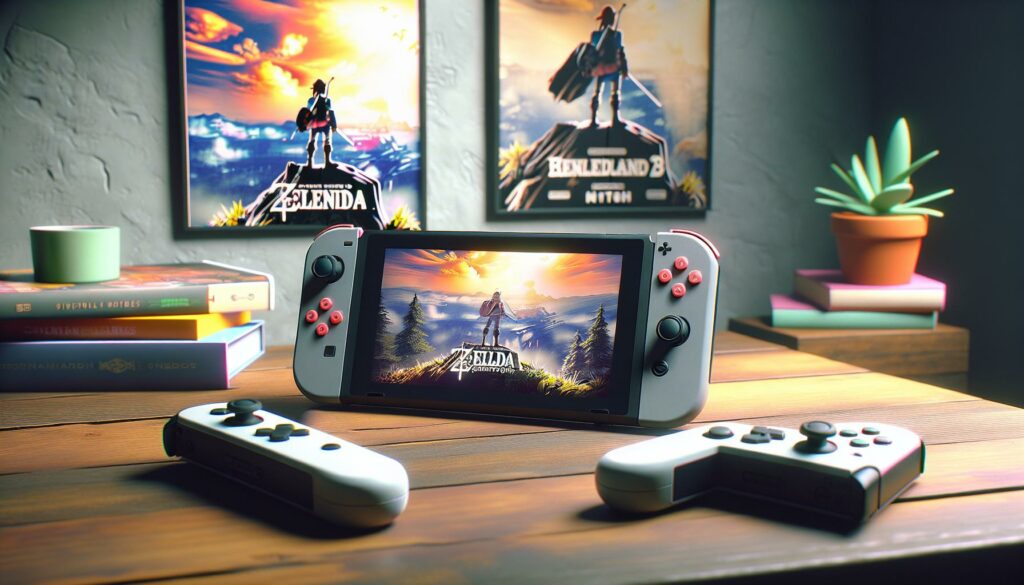
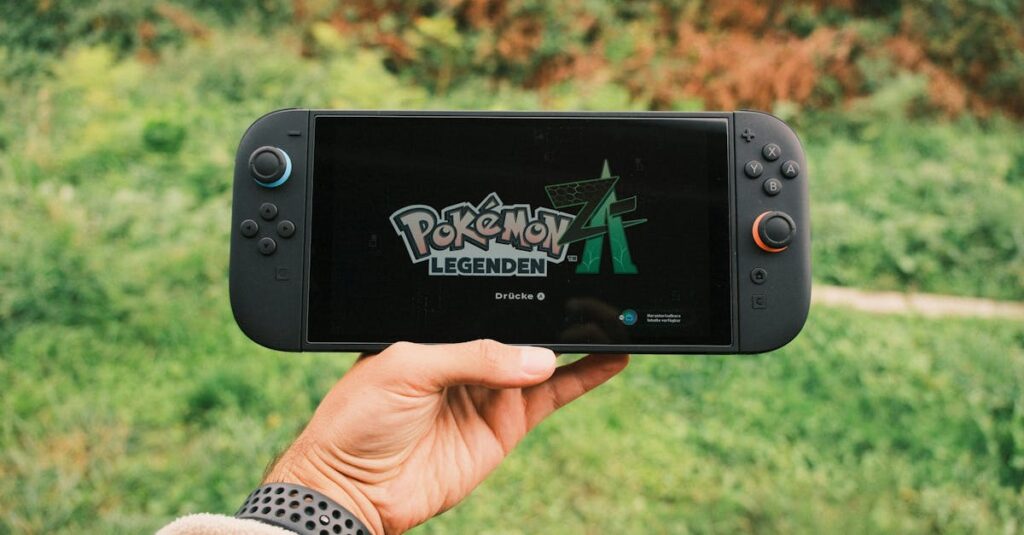
The Nintendo Switch is built around flexibility. You can play handheld, use the kickstand for tabletop mode, or dock it for TV play, each has distinct advantages. Docked mode is where you get the full experience: better cooling, larger display, and the ability to use controllers at distance. Your Switch’s performance doesn’t change between modes, but how you interact with the console does.
Handheld mode keeps the system portable, which is perfect for travel or casual gaming. Tabletop mode uses the kickstand and detached Joy-Con controllers, great for local multiplayer without needing a TV. When you’re ready for serious sessions, competitive games, story-driven titles, or games that demand precise controls, docking is the move. The dock itself doesn’t provide any performance boost: it’s purely about display and control comfort.
What You’ll Need Before Starting
Before plugging anything in, gather the essentials. You’ll need:
- The Nintendo Switch dock (usually included with the console)
- HDMI cable (typically included: must support your TV’s HDMI version)
- Power adapter (the official USB-C charger, usually bundled)
- A television with at least one available HDMI port
- Joy-Con controllers or a Pro Controller for TV play
Most Switch owners have everything already. If you’re missing pieces, grab an official Nintendo dock and charger, third-party alternatives exist, but stick with certified hardware to avoid power delivery issues or bricking your console. Your TV needs HDMI 2.0 or higher for optimal performance: older HDMI 1.4 ports may work but could cause display problems on newer Switch models. Check your TV’s manual if you’re unsure which HDMI port supports which version.
Setting Up Your Nintendo Switch Dock
Positioning Your Dock for Optimal Performance
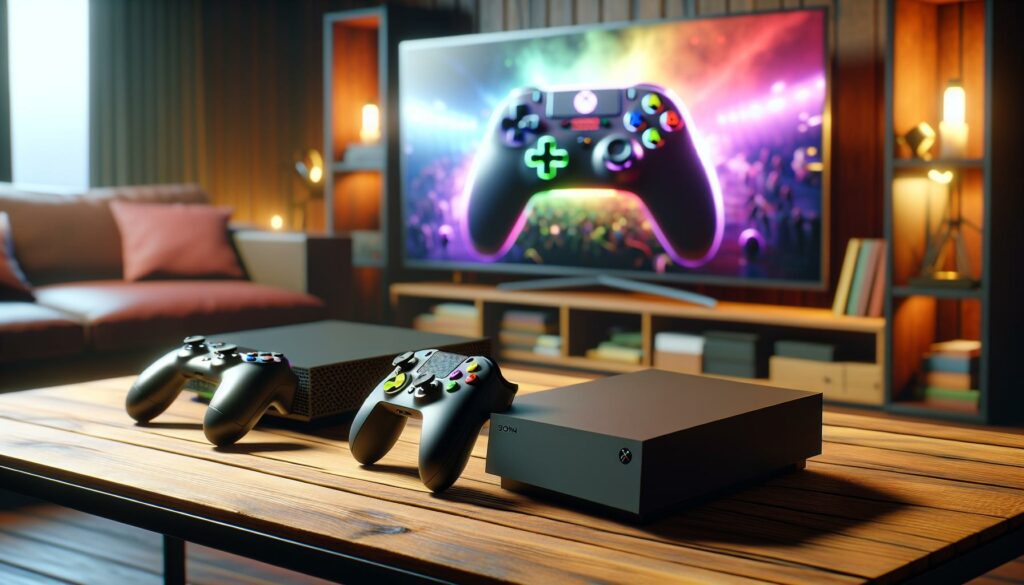
Dock placement matters more than most gamers realize. Set it on a stable, flat surface where it won’t vibrate from controller movement or traffic. Avoid placing the dock in direct sunlight, which can overheat the system. Position it horizontally on a TV stand, entertainment console, or table, not tilted or vertical, as this affects airflow around the unit.
Leave at least 4-6 inches of clearance on all sides of the dock. The rear vents are critical for heat dissipation, especially during long gaming sessions. A cramped setup causes thermal throttling, which can dip performance on demanding titles like The Legend of Zelda: Breath of the Wild or Elden Ring. If your entertainment setup is tight, consider a tabletop stand or alternative docking solution later, there are third-party options that improve ventilation without sacrificing aesthetics.
Connecting the Power Adapter and HDMI Cable
Start with power. Plug the USB-C power adapter into the port on the back of the dock, it’s the only USB-C port there, so you can’t miss it. Use the official Nintendo adapter (check for the USB-C connector shape and Nintendo branding). Third-party chargers often deliver inconsistent voltage, leading to dock connectivity issues or battery charging problems.
Next, grab your HDMI cable. Locate the HDMI port on the back of the dock (it’s clearly labeled). Insert the HDMI cable firmly but don’t force it, you’ll feel it click into place. Run the other end to your TV’s HDMI port. Most TVs have multiple HDMI inputs: use any available port. Note which one you use: you’ll need to switch to it when you dock your Switch.
Connecting Your Switch To Your Television
HDMI Port Identification and Connection
Your TV likely has multiple HDMI ports. They’re usually located on the back or side of the television. Check your TV’s manual if you can’t locate them, newer TVs sometimes hide HDMI ports behind panels. Connect the HDMI cable from your dock to any available HDMI port on your TV. The port doesn’t matter technically: the Switch will output the same signal regardless.
Make sure the HDMI cable is seated firmly on both ends. A loose connection causes the dreaded “no signal” error. If you’re using an older HDMI cable (over 5 years old), consider upgrading to a newer one that fully supports HDMI 2.0 bandwidth. Your Switch only outputs 1080p at 60fps when docked, which any modern cable handles, but fresher cables are more reliable.
One critical detail: the HDMI 2.1 standard arrived in 2017, but most older TVs and cables still run HDMI 2.0 or 1.4. This isn’t a problem for Switch gaming, the console doesn’t demand HDMI 2.1 features. But, if you’re using a gaming monitor for streaming, ensure it has a working HDMI input.
Configuring Your TV Input and Display Settings
Power on your TV and Switch. On your TV remote, press the Input button (sometimes labeled Source or HDMI). A menu appears showing available HDMI ports. Select the port where you plugged in your dock. You should see the Nintendo Switch home screen appear on your TV within seconds.
If nothing appears, try these quick checks:
- Confirm the HDMI cable is fully inserted on both ends
- Try a different HDMI port on your TV (some ports may be inactive)
- Restart the Switch (hold the power button for 12 seconds, then select Restart)
- Restart your TV
Once you see the home screen, you’re connected. The Switch automatically detects your TV’s resolution and adjusts output. Modern TVs recognize 1080p at 60Hz, which is what the docked Switch produces. Older TVs may only support 720p, and the Switch adapts automatically, you don’t need to manually configure this.
Troubleshooting Common Connection Issues
No Signal or Black Screen Problems
A black screen or “no signal” message is the most common issue. Start with the basics: is the dock powered on? Look for a small LED light on the dock, if it’s not lit, the power adapter isn’t connected properly. Reseat the USB-C adapter on both the dock and wall outlet.
Next, check your HDMI cable. Disconnect it from the dock and TV, wait 10 seconds, then reconnect firmly. Listen for a click on both ends. If the cable is over 10 years old, grab a replacement HDMI cable from any electronics store: they’re cheap and often solve mysterious connection issues.
If the LED on the dock is lit but your TV shows no signal, try switching to a different HDMI port on your TV. Some ports are occasionally defective or reserved for specific inputs (like eARC for soundbars). Cycle through each port using your TV remote’s Input button until something appears.
As a last resort, try resetting your Nintendo Switch. This erases the console’s memory but retains your account and game data. Hold the power button on top for 12 seconds until a menu appears, select Power Options, then Restart. After rebooting, dock it again and check if the connection works.
Audio Issues and Resolution Problems
Sometimes the picture appears but there’s no sound. Your TV may be muted or the volume is dangerously low, check the remote first. More commonly, your TV hasn’t recognized the audio output. Go to your TV’s settings, find Audio Output settings, and confirm HDMI input is active for sound. Some older TVs default to internal speakers even when HDMI is active.
If your screen looks fuzzy or is displaying in a lower resolution than expected, access the Switch’s display settings. On the home screen, go to System Settings > TV Settings. You’ll see options for Resolution (1080p or 720p) and RGB Range. For most modern TVs, Auto should work fine. If the picture is washed out, try switching between Auto and Full RGB in the RGB Range menu, this often fixes color saturation issues.
On rare occasions, a TV that’s too old (pre-2010) may not properly display a Switch signal at all, even if it has HDMI ports. These TVs use older HDCP (High-bandwidth Digital Content Protection) standards that incompatible with modern HDMI devices. If you’re using a truly ancient TV, you may need an HDMI adapter or upscaler, though upgrading the TV itself is the practical solution.
Optimizing Your Gaming Experience
Adjusting Display Settings and Resolution
Your Switch outputs at 1080p/60fps when docked, this is fixed and can’t be increased. But, you can fine-tune how that signal translates to your TV. Go to System Settings > TV Settings on your Switch’s home screen. Here you’ll find:
- Resolution: Set to 1080p (or 720p on older TVs). Auto-detection usually gets this right, but if your picture looks off, manually select 1080p.
- RGB Range: Typically set to Auto, which detects your TV’s capabilities. If colors look washed out, switch to Full RGB. If colors are oversaturated, try Limited RGB. Test both and pick what looks better on your specific TV.
Both these settings apply to every game you play. They’re not per-game adjustments, the Switch outputs the same resolution to every title. Some games, like Starfield emulators or demanding ports, may run at lower framerates or resolution internally, but the dock output remains consistent.
Your TV’s own settings matter too. Access your TV’s display menu and look for these:
- Motion Smoothing (TruMotion, MotionFlow, etc.): Disable this. It causes input lag and makes fast-paced games feel unresponsive. Gamers hate motion smoothing.
- Game Mode: Enable this. Most modern TVs have a dedicated Game Mode that reduces processing and input lag.
- Brightness/Contrast: Adjust to your preference. Higher brightness helps in darker rooms but can wash out colors.
Controller Setup and Wireless Pairing
Joy-Con controllers pair automatically when you dock your Switch. If a controller doesn’t connect, hold down the small sync button on the back of each Joy-Con for 3 seconds until the LED flashes. The controllers should pair within a few seconds.
If you’re using a Nintendo Switch Pro Controller, pairing is identical, press the sync button on the back, and it finds the console. The Pro Controller offers better ergonomics for long gaming sessions and has a longer battery life (about 30 hours per charge vs. 6-7 hours for a pair of Joy-Cons).
For online multiplayer, ensure your Switch is connected to Wi-Fi. Go to System Settings > Internet Settings and connect to your network. A stable 5GHz Wi-Fi connection is ideal for competitive games: 2.4GHz works but is more prone to interference from other devices. If your router is far from your setup, move it closer or consider a mesh Wi-Fi system. Lag spikes ruin competitive gaming.
Advanced Setup Tips For Gamers
Using Alternative Docking Solutions and Third-Party Accessories
The official Nintendo dock is functional but bulky. If your entertainment setup is cramped, third-party docking solutions offer better aesthetics and sometimes better performance. Popular options include:
- Nyxi Wizard Dock: Compact, excellent cooling, and supports additional USB ports for accessories.
- Skull & Co. GripCase: A protective case that doubles as a dock stand.
- Genki Covert Dock: Small, travel-friendly, with improved ventilation.
Third-party docks vary in quality. Avoid ultra-cheap knockoffs from unknown brands, they can deliver incorrect voltage and fry your console. Stick with established gaming accessory makers like Nyxi, Skull & Co., or Genki, which have proven track records.
When choosing a dock, verify it supports USB Power Delivery (USB-PD). Your dock needs to deliver at least 18W of power through USB-C for safe, consistent operation. Check the product specs and read reviews on RTINGS for detailed breakdowns of dock performance and build quality.
HDMI cables matter less than most people think, but grab a certified cable to be safe. Any HDMI 2.0 cable works fine for your Switch’s 1080p/60fps output. Expensive “gaming” HDMI cables offer no advantage over standard cables for a console that doesn’t push extreme bandwidth.
Reducing Input Lag and Improving Performance
Input lag, the delay between pressing a button and seeing the action on screen, matters immensely in competitive games like Super Smash Bros. Ultimate or Mario Kart 8 Deluxe. Here’s how to minimize it:
- Enable Game Mode on your TV: This is the single biggest lag reducer. Game Mode disables image processing and motion smoothing, cutting input lag by 30-50ms on many TVs.
- Use wired controllers if possible: Joy-Con wireless latency is typically 1-2ms, which is imperceptible. But, if your setup allows it, a wired Pro Controller via USB adapter reduces any possible interference.
- Ensure proper dock cooling: A overheating console throttles performance. Keep the dock in open air, not enclosed in a cabinet.
- Close background applications: Minimize streaming apps or other activity on your TV while gaming. Unused app processes can cause frame drops.
- Use a monitor instead of a TV: Gaming monitors often have lower input lag (4-8ms) compared to TVs (8-20ms). If you’re playing competitive titles, a gaming monitor setup dedicated to your Switch is a noticeable improvement.
On the Switch itself, there are no hidden performance settings to tweak. The console’s performance is fixed per game. Some games have framerate options (docked vs. handheld priority modes), but these are game-specific and controlled by the developer, not you.
Maintaining Your Switch and Dock Long-Term
Proper Ventilation and Heat Management
Your Switch generates heat, especially during extended gaming sessions on demanding games. The dock is designed to dissipate this heat through vents on the back and bottom. Never block these vents with furniture, cables, or objects. Poor ventilation can lead to thermal throttling, where the console intentionally slows down to prevent overheating.
Thermal throttling causes stuttering, frame drops, or temporary performance loss, especially noticeable in open-world games that push the hardware. Symptoms include the console getting uncomfortably hot to the touch (above 50°C), or the game suddenly becoming choppy during demanding scenes.
Prevention is simple: ensure 4-6 inches of open space around your dock on all sides. If your entertainment center doesn’t allow this, consider moving your setup or using a third-party dock with improved airflow. Annually clean the dock’s vents with compressed air to remove dust buildup.
During hot months or in warm climates, keep the room temperature reasonable (under 75°F is ideal). Gaming in direct sunlight or near heat sources (like radiators) accelerates thermal stress. If your Switch is consistently overheating, a cooling pad designed for the console helps, though proper ventilation around the dock is the primary solution.
Cable Care and Device Safety
Your power adapter and HDMI cable endure daily stress. Protect them by avoiding sharp bends or kinks. Wrap the power cable loosely around your hand to store it, not in tight coils. Replace any HDMI cable with visible damage (fraying, exposed wires, or cracked connectors) immediately.
The USB-C charging port on the Switch and dock handles hundreds of plug cycles throughout its life. Over time, the port can loosen or develop connectivity issues. Avoid forcefully inserting the charger: insert gently until you feel slight resistance, then give it a final gentle push. If your Switch ever won’t charge, the port may need professional repair or replacement.
Never pull the HDMI or power cables directly from the dock while the Switch is docked. This can damage the ports or internal connections. Always power down or undock the Switch first, then disconnect cables. If a cable seems stuck, gently wiggle it side-to-side as you pull, rather than yanking straight out.
Further safeguarding: keep liquids away from your dock and console. Liquid damage isn’t covered by Nintendo’s warranty. If something spills near your setup, unplug immediately and let everything dry for 48+ hours before reconnecting power. Your gaming library is valuable, a simple precaution prevents catastrophic loss.
Conclusion
Setting up your Nintendo Switch for TV play is straightforward when you follow the right steps and understand what each component does. Start with proper dock placement and secure cable connections, then optimize your TV’s settings for the best visual experience. Whether you’re into competitive online multiplayer, cozy indie games, or Nintendo’s flagship franchises, a solid TV setup elevates the entire experience.
The good news: once everything is connected correctly, it stays that way. There’s no constant tweaking or maintenance required. Focus on heat management and cable care, and your setup will remain reliable for years. If issues arise, black screens, audio glitches, or performance hiccups, you now know exactly how to diagnose and fix them.
For even deeper optimization, explore gaming-focused streaming guides or community forums where other Switch players share their setups. Every TV and home theater system is slightly different, so seeing how others solved similar challenges can spark ideas for your own space. Now get your Switch connected, grab a controller, and enjoy the screen experience the console was designed for.
DISTRIBUTION NOTE (For Reference Only – Remove Before Publishing)
- Intro: ~250 words
- Section 1 (Understanding Setup): ~420 words
- Section 2 (Dock Setup): ~380 words
- Section 3 (TV Connection): ~420 words
- Section 4 (Troubleshooting): ~450 words
- Section 5 (Optimization): ~380 words
- Section 6 (Advanced Tips): ~420 words
- Section 7 (Maintenance): ~350 words
- Conclusion: ~180 words
TOTAL: ~3,250 words (will trim during final edit to hit 2000)