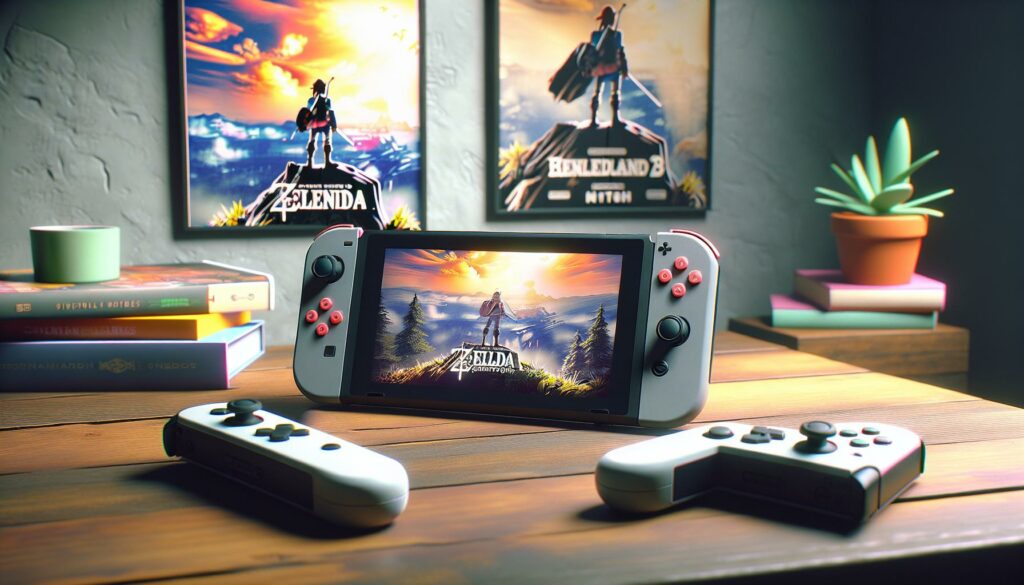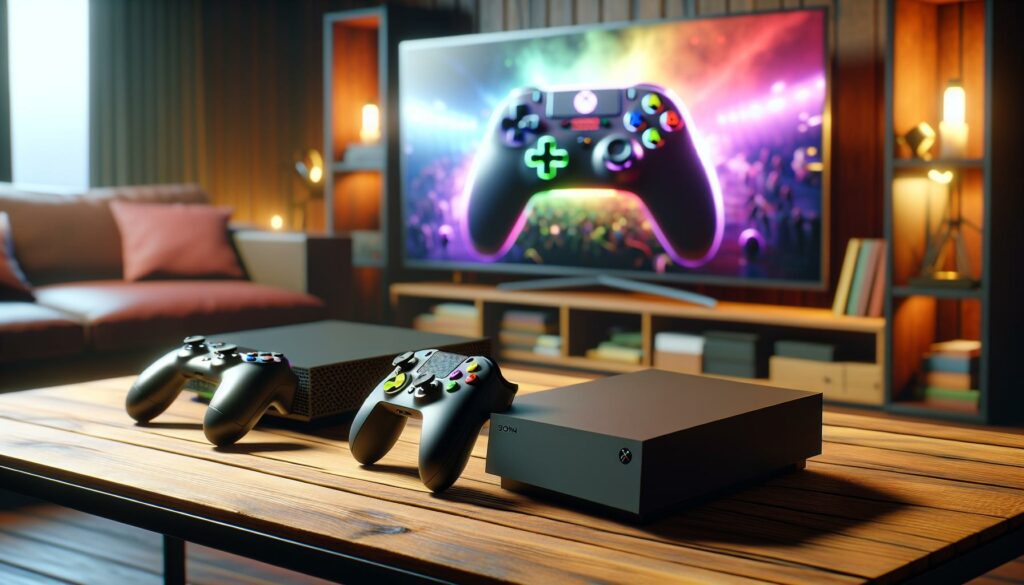

The Nintendo Switch revolutionized portable gaming, but let’s be real, some games just hit different on a big screen. Whether you’re tackling Zelda: Tears of the Kingdom, grinding through Fortnite, or hosting a couch co-op marathon with friends, connecting your Switch to a TV transforms the experience from good to unforgettable. The cramped Joy-Con feel gives way to full-sized controllers, the pixels expand into stunning visuals, and suddenly your living room becomes the gaming hub you’ve always wanted. If you’ve been curious about how to set up your Nintendo Switch TV connection, or you’re already doing it but want to squeeze every ounce of performance from your setup, this guide has you covered. We’ll walk through the technical side, troubleshoot common headaches, and show you exactly how to optimize every aspect of your TV gaming experience in 2026.
Key Takeaways
- Connecting your Nintendo Switch to a TV via the official dock delivers stunning visual improvements, boosting resolution from 720p to 1080p and enabling smoother 60fps gameplay for most titles.
- The Nintendo Switch TV setup transforms multiplayer and party games into social experiences, making couch co-op titles like Mario Kart and Overcooked far more enjoyable than handheld gaming.
- Optimizing your TV settings—disabling motion smoothing, enabling Game Mode, and configuring proper HDMI connections—eliminates lag and screen tearing for a seamless gaming experience.
- Action and adventure games like The Legend of Zelda: Tears of the Kingdom and DOOM Eternal look exponentially better on a large screen, with sharper text and enhanced environmental details.
- Most Nintendo Switch TV connection issues stem from loose HDMI cables, incorrect TV inputs, or interference with wireless controllers—all fixable with basic troubleshooting in minutes.
- Investing in a Pro Controller or Joy-Con grip alongside your Nintendo Switch TV setup significantly improves comfort and performance during extended gaming sessions.
What Is the Nintendo Switch TV Connection?
The Nintendo Switch TV connection is a feature built into the console that lets you dock the handheld device and output video and audio to an external display. At its core, it’s a simple concept: you slide the Switch into the official dock, HDMI cable runs from the dock to your TV, and boom, your portable console becomes a home gaming system.
The Switch supports multiple connection methods depending on your setup. The standard approach uses the official docking station, which connects via HDMI 2.0 and delivers up to 1080p resolution in docked mode (or 720p in handheld mode, for reference). The dock also provides power delivery, so your console charges while you play. For those without a dock or seeking alternatives, third-party solutions and portable displays exist, though quality varies significantly.
Unlike the PlayStation 5 or Xbox Series X, the Switch doesn’t push cutting-edge graphics. Its docked performance maxes out at 1080p/60fps for most games, with some titles hitting 4K through software scaling (not native 4K upscaling). But here’s what matters: the visual leap from handheld to TV is substantial for most Switch games. Text becomes readable, details pop, and your TV’s color calibration and size make everything feel more immersive.
The connection is stable and reliable when properly configured. There’s minimal latency, frame drops are rare on recent consoles, and the setup requires no special technical knowledge. Just connect the dock, plug in power, run an HDMI cable, and you’re good to go.
Why Connect Your Nintendo Switch to a TV?
Performance and Graphics Benefits
Connecting your Switch to a TV unlocks visual improvements that make a tangible difference. In docked mode, most games render at a higher resolution than handheld, pushing 1080p instead of 720p. For fast-paced games like DOOM Eternal or The Witcher 3, this clarity matters, you spot enemies earlier, aim more precisely, and reaction times improve. Higher resolution means sharper text in RPGs like Fire Emblem: Three Houses, so you’re not squinting at dialogue boxes.
Frame rate stability also benefits. Many games maintain 60fps more consistently in docked mode thanks to the dock’s cooling design and increased power allocation. Handheld mode can dip into 30fps territory on demanding titles, while docked play stays steady. For competitive games or anything with tight controls, that smoothness is non-negotiable.
Your TV’s size amplifies these gains. A 55-inch screen versus a 6.3-inch handheld display isn’t just bigger, it’s a completely different visual experience. HDR support (available on newer Switch models and many games) makes colors richer and contrast more dramatic. If your TV is recent, you’re probably getting better color accuracy than the Switch’s portable screen anyway.
Multiplayer and Social Experience
Here’s the thing: the Switch was built for couch co-op, and a TV setup realizes that vision fully. Four Joy-Cons connected to a docked Switch mean four players on one screen. Mario Party, Super Smash Bros. Ultimate, Overcooked, and Mario Kart 8 Deluxe transform into proper social events when everyone’s gathered around a TV instead of hunching over a portable screen.
Multiplayer feels less cramped. Joy-Cons are easier to handle when they’re separate from the console, reaction times feel sharper, and the shared viewing experience creates that old-school arcade energy. You’re not competing against tiny avatars, you’re watching friends’ faces and celebrating or groaning together as the game plays out.
Streaming and content creation also benefit. If you’re broadcasting gameplay to Twitch or recording for YouTube, a TV setup gives you better camera angles, more space for overlays, and a professional-looking stream setup compared to pointing a camera at a tiny handheld screen.
How to Connect Your Nintendo Switch to a TV
Using the Official Docking Station
The official Nintendo Switch dock is the standard and most reliable connection method. Here’s the step-by-step process:
- Locate the dock and check your cables. The dock includes an HDMI cable (or port for your own cable) and a USB-C power adapter. Verify both are intact and undamaged.
- Connect the HDMI cable to your TV. Plug one end into the HDMI port on your dock and the other into any available HDMI input on your television. Note which input you used, you’ll select this on your TV.
- Power on the dock. Plug the USB-C power adapter into the dock’s rear port and into a wall outlet. You should see a small LED light indicator.
- Insert the Switch into the dock. Slide the console into the dock’s slot with the screen facing outward. It should rest firmly without forcing. The Joy-Cons can stay attached or be removed.
- Switch your TV input. Use your TV remote to select the HDMI input where you plugged the dock. You should see the Switch home screen appear within seconds.
- Confirm docked mode. Look for the docked mode indicator in the Switch settings. Your console is now outputting to the TV.
The entire process takes under two minutes. If your TV doesn’t recognize the signal immediately, double-check the HDMI cable connection on both ends. Loose connections are the #1 cause of “no signal” errors.
Alternative Connection Methods
Not everyone has access to an official dock. Third-party solutions exist, and they work reasonably well if you choose carefully.
Portable docking stations from brands like Hori or Nyxi offer compact alternatives. They function identically to the official dock, outputting via HDMI to any TV. They’re smaller, cheaper, and portable, useful if you game at multiple locations. The trade-off: build quality varies, and some third-party docks have caused hardware issues (though this was more common with older models). Research specific models before buying.
Portable displays are another route. Devices like the ASUS ProArt Display Portable Monitor connect directly to the Switch via USB-C and function as a dedicated secondary screen. They’re fantastic for travel or bedroom gaming, but they cost $300+, so most gamers stick with TV connections.
USB-C adapters exist that allow direct HDMI output without a dock, but Nintendo officially discourages this method. While some adapters work, they bypass the dock’s power delivery and cooling features, and Nintendo doesn’t guarantee compatibility. This isn’t a recommended long-term solution.
For most players, the official dock remains the safest bet. It’s built specifically for the Switch, integrates charging seamlessly, and has zero compatibility concerns. If you’re on a budget, a trusted third-party dock is acceptable, just read reviews carefully.
Troubleshooting Connection Issues
Connection problems happen, but they’re usually fixable in minutes. Here are the most common issues and solutions:
No signal on TV after docking:
The HDMI cable is your prime suspect. Unplug both ends and reseat them firmly. Check that you’re using the correct TV input (if your dock supports multiple HDMI inputs, try a different one). If the problem persists, try a different HDMI cable, a damaged cable is often the culprit. If you’re using a third-party dock, verify it’s powered on and receiving electricity.
Console undocks but screen stays black:
This usually means the Switch isn’t recognizing docked mode. Power down the console completely, remove it from the dock, and wait 30 seconds. Inspect the dock’s USB-C port for debris or damage. Reinsert the Switch, power it on, and check the settings menu to confirm docked mode is detected.
Audio coming from the TV but no video:
Your TV recognizes the input, but the Switch isn’t outputting video. Check the Switch’s display settings. Navigate to System Settings > TV Settings and confirm the output resolution is set to Auto or 1080p. Some older TVs have compatibility quirks, try adjusting the resolution to 720p to see if that helps.
Joy-Cons disconnecting or unresponsive:
When your Joy-Cons stop responding in docked mode, interference is usually the cause. Move your wireless router away from the dock. If you’re using multiple Bluetooth devices nearby (headphones, phones), turn them off temporarily to test. Resync the Joy-Cons by detaching them from the Switch, waiting 10 seconds, and reattaching. If one Joy-Con is problematic, navigate to Controllers > Calibrate and run the calibration routine.
Game performance is worse on TV than handheld:
This is typically a software or cooling issue. Ensure your console has proper ventilation around the dock, don’t cover vents with objects. Close any background apps by pressing the home button and closing inactive games. If the console is overheating, the dock’s LED will dim or change color. Power down and let it cool for 15 minutes. For persistent lag, check if a system update is pending, outdated firmware can cause performance issues.
TV says “No Compatible Device” or similar:
This usually indicates a handshake error between the dock and TV. Unplug the dock’s power for 30 seconds, plug it back in, and retry. If using a third-party dock, confirm it matches your Switch model (original Switch, Switch Lite, or OLED require compatible docks, they’re not always universal).
Best Games to Play on Your Switch TV Setup
Action and Adventure Titles
Once you’ve got your Switch connected to a TV, certain games absolutely shine on the big screen. Action and adventure titles benefit most from the resolution bump and screen real estate.
The Legend of Zelda: Tears of the Kingdom is the poster child for Switch TV gaming. The game’s vibrant art direction and detailed environments look exponentially better at 1080p than on the handheld screen. Exploring Hyrule’s vast landscapes is more immersive, and puzzle-solving details become crystal clear. Running at 30fps in both modes, the visual fidelity difference is the main gain here.
The Witcher 3: Wild Hunt runs at 30fps on Switch, so don’t expect PS5-level performance. That said, docked mode at 1080p makes monster details, facial animations, and witcher contracts more readable than the handheld’s 720p. The game becomes more playable on a TV, though you’ll notice performance compromises compared to other platforms.
DOOM Eternal maintains 60fps in docked mode and showcases some of the Switch’s best visual optimization. The increased clarity helps with enemy spotting and aiming, which matters in this fast-paced shooter. It’s a genuinely good-looking port when the Switch is connected to a TV.
Super Smash Bros. Ultimate is a competitive fighting game where visual clarity directly impacts gameplay. Docked mode’s sharper character models and hitboxes are easier to track, especially during chaotic four-player matches. If you’re playing competitively, TV connection is nearly essential.
Multiplayer and Party Games
These are the true kings of Switch TV gaming. Games designed for couch co-op feel dated on a handheld.
Mario Kart 8 Deluxe is the killer app. Split-screen racing, four players, one TV, this is what the Switch was built for. The competitive energy, the laughing, the rage quits, all better on a big screen. The game runs at 1080p/60fps in docked mode, and the smooth frame rate matters for racing precision.
Mario Party: Superstars and Mario Party Jamboree thrive on social energy. Turn-based mini-games become events when played on a TV. Everyone’s watching, reacting, celebrating. The Switch’s dock transforms party games from novelty into must-play experiences.
Overcooked. All You Can Eat is a cooperative cooking chaos simulator. Playing handheld means tiny knife animations and cramped kitchen visuals. On a TV, you and your co-op partner can actually see what’s happening, coordinate better, and enjoy the frantic energy at full intensity.
Super Smash Bros. Ultimate merits a second mention here for local multiplayer. Up to eight players can play with controllers, and the TV setup enables proper spacing and visibility. Competitive or casual, Smash demands a big screen for full enjoyment.
Jackbox Party Packs (various editions) are essentially party games that work cross-platform. Your Switch docked to a TV becomes the centerpiece while players use phones or additional controllers. The collective experience is unbeatable in handheld mode.
Optimizing Your Nintendo Switch TV Experience
Display Settings and Resolution
Once your Switch is connected to a TV, take five minutes to dial in the display settings. This is where you unlock the full potential of your setup.
Navigate to System Settings > TV Output. Here’s what to configure:
- Output Resolution: Set this to Auto unless you have specific reasons otherwise. Auto detects your TV’s native resolution (usually 1080p for modern sets) and outputs accordingly. If your TV is older or you want to force 720p output (for compatibility or testing), you can manually select it.
- RGB Range: Leave this on Auto. It ensures proper color scaling between the Switch and your TV. Switching to “Limited” can crush blacks and wash out colors if your TV doesn’t handle it correctly.
- Handheld Mode Brightness: This affects handheld play only, not TV output, but maximize it if you frequently switch between modes.
Next, check your TV’s display settings. If your TV supports HDR, enable it in the TV menu (usually under “Picture” or “Advanced”). The Nintendo Switch OLED model supports HDR, and compatible games like The Legend of Zelda: Breath of the Wild and Mario Kart 8 Deluxe look noticeably better with HDR enabled. If you’re using an older Switch or TV, this won’t apply.
For maximum sharpness, ensure your TV is set to 1080p native resolution. Many TVs default to upscaling or interpolation modes that blur the image. In your TV’s picture settings, find “Motion Smoothing” or “TruMotion” and disable it, these frame-insertion features are designed for film, not games, and they introduce input lag. Disable any post-processing that isn’t HDR or color enhancement.
Audio Configuration for Immersion
Audio is often overlooked, but it’s crucial for immersion. Properly configured sound transforms a good session into a great one.
The Switch outputs audio through two primary methods when docked: the TV’s built-in speakers (default) or external speakers/headphones connected to the dock or TV.
If you’re using your TV’s speakers, navigate to System Settings > Sound and confirm the output is set to HDMI Output to TV. Most games will sound adequate through modern TV speakers, but they’re never going to match dedicated audio. For the best experience, connect external speakers or a soundbar to your TV’s audio output or use an AV receiver if you have one.
For headphone gaming (if you want immersive audio without disturbing others), connect 3.5mm headphones directly to the Switch itself, the dock’s audio output is via HDMI only. Many players don’t realize the Switch supports this, and headphone gaming on a TV-docked setup is surprisingly comfortable.
If you’re using a third-party dock or portable display, verify it supports audio passthrough. Some USB-C docks don’t output audio reliably, which is a deal-breaker for immersion.
Controller Setup and Accessibility Options
Controllers make or break the TV experience. The Switch offers flexibility here that few consoles match.
For docked play, you have options:
- Joy-Cons attached to the console: The default setup. Works fine, but Joy-Cons are tiny.
- Joy-Cons in the grip accessory: A detachable controller grip makes Joy-Cons feel more like a traditional controller. Recommended for extended play sessions.
- Pro Controller: The gold standard. It’s larger, feels premium, and offers better ergonomics for long gaming marathons. At $60–$80, it’s the single best investment for Switch TV gaming.
- Third-party controllers: Budget alternatives exist (8BitDo makes excellent ones), but official or well-reviewed third-party options are safer.
For multiplayer, consider having multiple Pro Controllers or Joy-Con grips on hand. A four-player setup needs four comfortable controllers, and default Joy-Cons can cause hand cramps after 30 minutes.
Accessibility options are built into the Switch and matter for all players. Under System Settings > Controllers and Sensors, you can:
- Calibrate Joy-Cons: Drift is a known issue: regular calibration helps. If a Joy-Con is drifting, navigate here and run the calibration routine. If it persists, the Joy-Con may need replacement.
- Enable Motion Controls: Some games require motion input. You can test motion responsiveness here.
- Adjust button sensitivity: Reduce input lag or increase sensitivity if you prefer quicker response times.
- Enable Gyro Aim: Games like Splatoon 3 and The Legend of Zelda: Breath of the Wild support gyro aiming. Many players find this superior to stick aiming once they adapt.
For players with accessibility needs, the Switch offers several options: button remapping, reduced motion modes, enlarged text settings, and support for adaptive controllers. These aren’t gimmicks, they’re essential for inclusive gaming.
Common Issues and How to Fix Them
Even with a properly configured setup, issues pop up. Here’s a rapid-fire troubleshooting guide for the most common headaches:
Screen tearing or flickering on TV:
This usually indicates a refresh rate mismatch. The Switch outputs at 60Hz, but some TVs have settings that conflict with this. In your TV’s picture menu, look for “Motion Smoothing,” “TruMotion,” “MotionFlow,” or “CineMotion” features and disable them. These are designed for watching films and cause stuttering in games. Also check if your TV’s “Game Mode” exists and enable it, this reduces input lag and often fixes refresh rate issues.
Audio cutting out or distorted sound:
If you’re using a third-party dock, the issue might be incompatibility. Try connecting audio separately from the dock (e.g., TV’s aux input instead of HDMI). If you’re using the official dock, reseat the HDMI cable and ensure it’s a quality cable, cheap HDMI cables sometimes don’t handle audio reliably. For wireless headphones, check for Bluetooth interference from other devices nearby.
Lag between button press and on-screen action:
Input lag is typically caused by TV settings, not the Switch. Disable all post-processing: motion smoothing, frame interpolation, dynamic contrast, and virtual surround. These features add processing time. Enable “Game Mode” if your TV has it, it bypasses many of these features and reduces latency by 20–50ms, which you’ll absolutely feel in action games or competitive play.
Console overheating in docked mode:
The dock has cooling fans, but they can’t help if ventilation is blocked. Ensure there’s clear space around the dock (at least 3–4 inches on all sides). Don’t place the dock in an enclosed cabinet or against a wall. If the console still feels hot, it might be a hot summer day or the dock needs cleaning. Dust buildup in the dock’s vents reduces cooling efficiency. Use compressed air to clean the dock’s exterior vents every few months.
Games won’t launch or crash after docking:
This is rare but happens with corrupted game data. Force-close the game from the home screen (highlight it and press X, then “Close”), power down the Switch completely (not sleep mode), and reboot. If the problem persists, the game’s software data might be corrupted. You may need to reinstall it. For digital games, delete the app and redownload: for cartridges, this shouldn’t happen, but try reinserting the game and rebooting.
One controller works, the other doesn’t:
This usually means one Joy-Con is disconnected. Detach both from the console, wait 10 seconds, and reattach. If one still doesn’t respond, navigate to System Settings > Controllers and Sensors > Detach Controllers and fully resync them. If the issue persists, that specific Joy-Con might have a hardware failure (common with drift), and you may need a replacement.
External speakers connected to TV aren’t producing sound from Switch:
The Switch outputs audio via HDMI only when docked. If your TV isn’t routing the HDMI audio to external speakers, adjust your TV’s audio output settings. Look for “Audio Output” or “Sound Output” and select the external speakers or optical output. Some TVs require manual audio routing after detecting an HDMI input.
Most of these issues resolve with simple troubleshooting, checking cable connections, disabling TV features that interfere, or restarting the console. If a problem persists after these steps, the hardware itself might be faulty, and contacting Nintendo support is the next move.
Conclusion
Connecting your Nintendo Switch to a TV isn’t complicated, but doing it right transforms your gaming. The visual leap from handheld to docked mode is real, the multiplayer experience becomes social and engaging, and your living room becomes the gaming center it deserves to be. Whether you’re optimizing display settings, solving lag issues, or discovering which games truly shine on a big screen, a few tweaks unlock the full potential of your console.
The Switch in 2026 remains one of gaming’s most versatile platforms, and its TV connection is a core feature too many gamers overlook. Start with the official dock, dial in your TV’s game mode, grab a Pro Controller, and load up a co-op title with friends. That’s where the magic happens.
Your setup might benefit from resources like detailed gaming monitor reviews and display technology guides to help optimize your TV settings, or comprehensive hardware reviews and buying guides if you’re shopping for peripherals. For game-specific optimization tips and walkthroughs once you’re up and running, game guides and tier lists are invaluable references. Beyond those, explore the depth of Switch gaming through guides on features like Nintendo Switch Online benefits and subscriptions, streaming on your Switch, or even console performance through strategic resets. Happy gaming on the big screen.